How Does Apple Music Family Plan Work
Published on 06.07.2023 by Sofia Novak
Have you ever wondered how the Apple Music Family Plan works? With a family plan, up to six people, you included, can use Apple Music on one subscription. Every person gets their own account, their own library and their own recommendations, so nobody's playlists get mixed up. It usually costs much less than paying for separate plans. In this post, we explain how the Family Plan works, what it offers and how to set it up.
What is Apple Music Family Sharing?
Apple Music Family Sharing is a subscription that lets up to six people in one family use Apple Music. Everyone can listen on their own devices, with their own library, playlists and recommendations. Family members can still share playlists with each other, which is a great way to discover new music together. Family Sharing also sets up a shared family calendar and a shared photo album, which is handy for planning events.
Benefits of Apple Music Family Sharing include:
- Access to millions of songs from the Apple Music catalog
- The ability to share music across multiple devices
- A shared family calendar for coordinating events and special occasions
- The ability to create shared photo albums and playlists
- Each member can listen to their own music preferences
- Family members can share playlists with each other
- A great way for families to discover new music together
- Family Sharing also provides access to Apple’s full range of services, including iCloud storage, App Store purchases, and more.
All of this makes Apple Music Family Sharing a convenient and affordable way to share music. Each family member gets their own account and library, and you only pay for one plan.
How to Set Up Family Sharing Step-by-Step
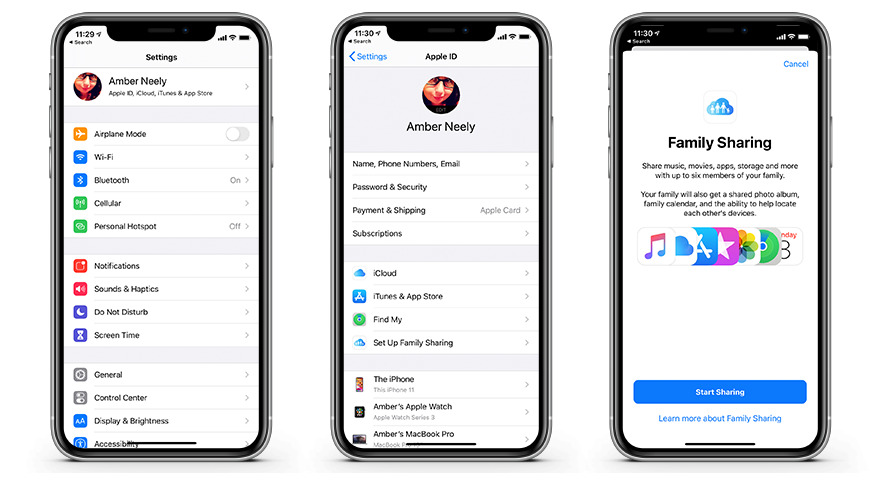
Family Sharing is a great way to share your purchases with the people you care about. It allows family members to enjoy the same digital content and save money. This is how you go about setting up the Family Sharing option on any Apple device you own.
Step 1: Ensure Compatibility
Before setting up Family Sharing, you should make sure that your device is compatible with this feature. To do this, ensure that the people you want to share the plan with have compatible devices running the latest versions of iOS, iPadOS, or macOS. This will ensure smooth integration and the availability of all features.
Step 2: Go To “Settings”
Once you make sure all of your devices are compatible, go to “Settings” on each of them. This is usually indicated by a cog icon on the home screen.
Step 3: Sign In With Your Apple ID
When in Settings, scroll down and select your name at the top of the menu. If you haven't already signed in with your Apple ID, now is the time to do it. Sign in with your Apple ID, which will act as the organizer's ID for Family Sharing.
Step 4: Open Family Sharing
To access Family Sharing settings, considering your device, do either of the following:
- On iOS or iPadOS, go to Settings and tap on your name at the top.
- On macOS, open System Preferences and click on "Apple ID".
Step 5: Set Up Family Sharing
To get started with Family Sharing, you will need to access the Family Sharing settings.
- On iOS or iPadOS, you can do this by finding and tapping "Set Up Family Sharing."
- On macOS, look for "Set Up..." next to Family Sharing.
Once you have found it, you may need to tap "Get Started" to continue after a short introduction.
Step 6: Share Your Purchases With Your Family
When setting up Family Sharing, you can decide which content can be shared with your family members. This includes Apple Music, books, TV shows, movies and more. To do this, go to “Family” and select the items that you want to share.
Step 7: Invite Family Members
Once you have chosen which purchases you are going to share, you can add family members by tapping on the “+ Add Family Member” option. You will then need to enter their Apple ID credentials or send them an email invitation. Once they join, they will be able to access any content shared with them.
Step 8: Accept The Invitation
If someone sends you an invitation to join a family group, simply open the email and tap on the link provided. This will take you to a page where you can accept the invitation.
Step 9: Customize Sharing Options and Manage Family Members
Once you have joined a family group, you can customize the sharing options and manage your family members. To do this, go to “Family” in the Settings app and select “Manage Family”. Here you can add or remove members, decide which purchases should be shared with them, set up allowances for children, and more.
Following these steps, you will be able to successfully set up Family Sharing on your Apple device. This feature makes it easy for family members to access digital content purchased by other members of the group. It also helps keep track of who is using what content and when.
FAQ
Q: Can multiple people share an Apple Music subscription?
A: Yes, you can share an Apple Music subscription with up to six people. Apple Music Family Sharing allows you and your family members to share music, playlists and more. Each person has their own individual account with personalized playlists and preferences, but they will all have accessed the same vast library of content that comes with the subscription.
Q: Can I add more than 6 people from my Apple Music?
A: No, you can only add up to 6 people from your Apple Music. This is because Apple Music works as a family subscription, designed for up to 6 members. If you need additional accounts for other family members or friends, you can create separate Individual accounts that will be billed separately.
Wrapping Up
To sum up, Family Sharing is a great way to share Apple Music and other content with the people you live with. Follow the steps above, and you can manage who has access and what is shared in a few minutes.